How to merge two contacts in HubSpot
Short answer: open the contact you want to keep, click Actions in the left panel, choose Merge, search for the duplicate, review the property values, then click Merge. The record you opened is the primary record: its values win when both records disagree. Merges are available on every HubSpot plan and cannot be undone.
Step by step, as documented in HubSpot's merge guide:
- Go to CRM > Contacts.
- Click the name of the contact you want to keep. This becomes the primary record.
- In the left panel, open the Actions dropdown and select Merge.
- In the dialog, search for and select the duplicate (the secondary record).
- Review the property values HubSpot will keep. Use Set properties to review to compare other properties.
- Click Merge.
You need the Merge permission or Super Admin rights. Timeline activities from both records end up on the merged contact, and associations from both records are carried over. HubSpot notes that activities can take up to 30 minutes to sync after a merge.
The one decision that matters is step 2. Which record you open first decides which values survive, so read the next section before you merge anything important.
What HubSpot keeps when you merge: our test results
Short answer: the primary record wins every conflict, even when the other record's value is more recent. Empty fields on the primary are filled from the duplicate. The oldest create date and the most advanced lifecycle stage are kept, and the merged record gets a brand new record ID.
HubSpot's documentation says the primary record's values are "prioritized". We wanted the detail, so we merged contacts and companies on live HubSpot portals on September 29 and 30, 2026, and recorded what survived each time.
| Situation | What HubSpot does |
|---|---|
| Both records have a different value | The primary record's value wins, even if the other one is more recent |
| The primary record has an empty field | It is filled with the duplicate's value (phone, job title, owner, industry) |
| Record ID | The merged record gets a new ID; both old IDs redirect to it |
| Lifecycle stage (contacts) | The most advanced stage wins: a "lead" merged with a "customer" becomes a "customer" |
| Create date | The oldest of the two, whichever record is primary |
| Number properties | The primary record's number (no sum, no maximum) |
| Email of the duplicate contact | Kept as an additional email address on the merged contact |
| Domain of the duplicate company | Kept as an additional domain on the merged company |
Three consequences follow:
- Choosing the primary record is choosing who wins. If the duplicate holds the up-to-date job title and the primary holds last year's, last year's title survives. Compare the two records first and open the one with the better data.
- Anything that stores the old record ID must follow the redirect. HubSpot creates a new ID for the merged record (accounts in HubSpot's Primary ID Preservation beta keep the primary record's ID instead). Spreadsheets, a data warehouse or an outside tool that saved the old IDs will point to records that no longer exist on their own.
- An overwritten value is gone. HubSpot states plainly that "it's not possible to unmerge records". The Merged Record IDs property tells you which records were merged, not what their values were.
If you sync HubSpot with Salesforce, note that only the primary contact keeps syncing after a merge.
How to find duplicates in HubSpot
Short answer: HubSpot blocks two contacts with the same email and two companies with the same domain, but it does not catch the same person with two emails. To list likely duplicates, use Manage duplicates under CRM > Contacts or Companies, available on Professional and Enterprise plans.
What HubSpot deduplicates on its own
HubSpot deduplicates contacts on the Email property: you cannot save a second contact with an email that already exists, and a form submission with a known email updates the existing contact. Companies are deduplicated on the company domain name, with one important exception: companies created through the API, which includes most sync apps, are not deduplicated by domain.
The Manage duplicates tool
Go to CRM > Contacts (or Companies), click the three-dot menu in the upper right and select Manage duplicates. According to HubSpot's documentation:
- It requires a Professional or Enterprise subscription (Marketing, Sales, Service, Data or Smart CRM Hub).
- It compares names, email, phone, company name, IP country and zip code for contacts, and domain, name, country, phone and industry for companies, and gives each pair a similarity score.
- It shows up to 10,000 pairs. Merging pairs in bulk and writing custom matching rules require Data Hub Professional or Enterprise.
- Clicking Reject on a pair keeps it out of the list for good (rejections can be undone for 14 days).
What native detection misses
The tool works well on clean data. The duplicates that cost the most are the ones that don't look alike:
- One person, two emails: a work address from an import and a personal Gmail address from a webinar form. HubSpot sees two different people.
- Spelling variants: "Jean-Pierre" and "Jean Pierre", "ACME SAS" and "Acme", accents dropped by an old integration.
- Secondary domains: the same company on brandname.com and brandname.fr, created by two different sync apps.
And some pairs look alike without being duplicates. Merging them destroys good data:
- A shared switchboard number: three colleagues with the same phone number are three people.
- Namesakes on Gmail: two "Thomas Martin" with personal addresses are rarely the same Thomas.
- A parent company and its subsidiary: "Acme" and "Acme France" share a name and a domain root, and often serve different buyers.
Create a Jipup account and connect HubSpot: the free read-only audit counts your duplicate contacts and companies in a few minutes. 250 free credits, no credit card.
How to merge companies in HubSpot
Short answer: the steps are the same as for contacts: open the company to keep, click Actions, then Merge, and pick the duplicate. The duplicate's domain is kept as an additional domain on the merged company, so future records from that domain still match it.
- Go to CRM > Companies.
- Open the company to keep.
- Click Actions, then Merge, and select the duplicate.
- Review the values and click Merge.
Watch for two failure cases listed by HubSpot: companies linked in a parent and child relationship may refuse to merge, and a merge fails when the two records together reach 250 or more previous merges.
How to merge deals in HubSpot
Deals merge the same way, from CRM > Deals: open the deal to keep, then Actions > Merge. Check the amount, close date and deal stage before you confirm: like any property, they come from the primary deal whenever both deals have a value.
The secondary email trap
In HubSpot, an email address belongs to one contact only, whether it is that contact's primary or an additional address. You can add a secondary email to a contact, unless that address is already on another contact record.
We measured the consequence on October 6, 2026: HubSpot refuses (with a 409 error) to create a contact whose email already exists as the secondary email of another contact. After a merge, the duplicate's email becomes a secondary address on the merged contact, so no new contact can ever be created with it.
That explains a common support question: "HubSpot says this contact already exists, but I can't find it." Search for the address: it is probably a secondary email on a contact merged months ago. It also means the most expensive duplicates, the same person with two different addresses, are exactly the ones HubSpot cannot see on its own.
Merge rules: deciding which value wins
Merging by hand means choosing the primary record pair by pair, and accepting that it wins every conflict. For a few pairs, that is fine. For a few hundred, you need rules per property:
- Keep the most recent value for fields that change: job title, phone number, contact owner.
- Keep the oldest value for fields that should not move: original source, first conversion date.
- Keep both for free text and multiple checkboxes: notes, interests, tags.
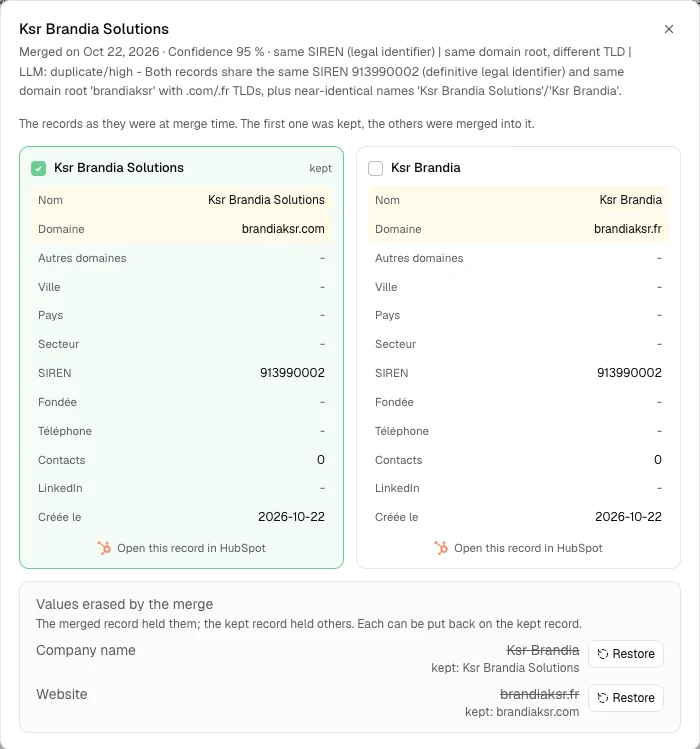
This is how the Jipup agent merges: you set the rule once per property, a confidence threshold below which nothing is merged without your approval, and the agent applies it to every pair, in HubSpot, on the schedule you choose. Every merge is logged with both records and the reason, and each value the merge overwrote can be put back.
Ogo Security cut its HubSpot duplicates by 98% after the agent's first pass (read the case study).
Native tool or an agent: which one do you need ?
| HubSpot Manage duplicates | Jipup agent | |
|---|---|---|
| Plans | Professional and Enterprise (bulk merge: Data Hub) | Any HubSpot account where you can install apps |
| Matching | Similarity score on default properties, up to 2 custom rules per object with Data Hub | Fuzzy matching on names, domains, legal identifiers, plus an AI review of uncertain pairs |
| False positives | You reject pairs by hand | Shared switchboards, Gmail namesakes and parent companies are recognized and held for review |
| Which value wins | Primary record, or one criterion for a bulk merge (most recent engagement, created first...) | A rule per property: most recent, oldest, or keep both |
| Overwritten values | Lost | Logged and restorable |
| Rhythm | When someone opens the tool | Continuously, on your schedule |
If your portal has a few dozen duplicates and a Professional plan, the native tool is enough: work through the list once a month. If duplicates keep coming back from imports, forms and sync apps, the cleanup has to run on its own.
How to keep HubSpot duplicate-free
- Import with the Record ID or the email column so rows update existing records instead of creating new ones.
- Ask for a work email on forms where you can, and avoid forms that let the same person sign up with a second address.
- Check how each sync app creates companies: companies created through the API skip HubSpot's domain deduplication.
- Require unique values on identifiers you trust (a customer ID, a legal company number). HubSpot allows up to ten unique properties per object.
- Run detection continuously. Between 15% and 30% of B2B contacts change jobs every year in our customers' databases, depending on the segment, and every import adds new pairs.
FAQ
How do I merge two contacts in HubSpot ?
Open the contact you want to keep, click Actions in the left panel, select Merge, search for the duplicate and click Merge. The contact you opened first is the primary record and its values win every conflict.
What happens to the data when you merge contacts in HubSpot ?
The primary record's values are kept when both records have a value; its empty fields are filled from the duplicate. The oldest create date and the most advanced lifecycle stage are kept, the duplicate's email becomes an additional email, and the merged contact gets a new record ID.
Can you unmerge contacts in HubSpot ?
No. HubSpot states that it is not possible to unmerge records. The Merged Record IDs property shows which records were merged, but overwritten values are not stored.
Does HubSpot automatically deduplicate contacts ?
Only on email: HubSpot will not create a second contact with an email that already exists. Companies are deduplicated on domain, except companies created through the API. Everything else needs the Manage duplicates tool or an outside tool.
How do I merge duplicate companies in HubSpot ?
Open the company to keep, click Actions, then Merge, and select the duplicate. Its domain is kept as an additional domain on the merged company.
Why does HubSpot say a contact already exists when I can't find it ?
The email is probably stored as a secondary address on another contact, often after an old merge. An email can belong to only one contact in HubSpot, primary or secondary, so search for the address and check the additional emails of the contact it returns.
Where Jipup fits
Create a Jipup account and connect HubSpot: the free read-only audit counts your duplicate contacts and companies in a few minutes. 250 free credits, no credit card.

Co-founder of Jipup, the AI agent that keeps HubSpot CRMs clean, up to date and enriched. He works every week with RevOps and sales teams on their CRM data.